Physical Address
304 North Cardinal St.
Dorchester Center, MA 02124
Physical Address
304 North Cardinal St.
Dorchester Center, MA 02124

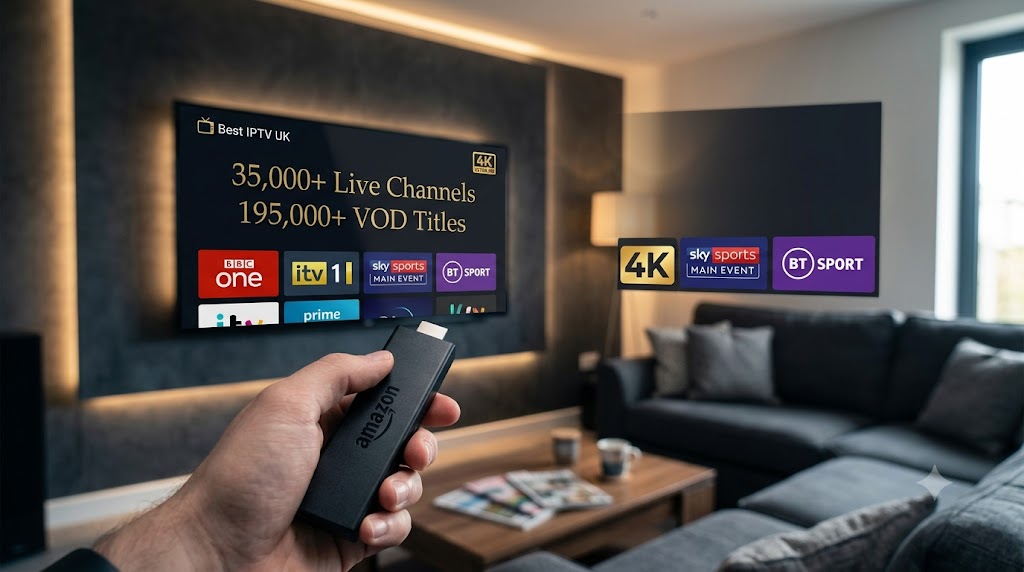
Learn how to set up IPTV with Amazon Firestick in under 10 minutes. Step-by-step guide with installation, troubleshooting, and best apps for UK streaming.
What You Need Before You Start
Step 1 – Set Up Your Firestick
Step 2 – Enable Apps from Unknown Sources
Step 3 – Install the Downloader App
Step 4 – Install an IPTV Player App
Step 5 – Enter Your IPTV Login Credentials
Optimising Your Firestick for the Best IPTV Experience
Troubleshooting Common Firestick IPTV Issues
Frequently Asked Questions
Get Started with the Best IPTV UK Subscription
Setting up IPTV on your Amazon Firestick is one of the easiest ways to start watching live television and on-demand content on your TV. The entire process takes less than ten minutes, requires no technical experience, and turns your Firestick into a complete cable TV replacement.
Before you begin, make sure you have:
An Amazon Fire TV Stick. Any model works – the standard Fire TV Stick, Fire TV Stick Lite, Fire TV Stick 4K, or Fire TV Stick 4K Max. If you want 4K Ultra HD streaming quality, you need the 4K or 4K Max model.
A stable internet connection. Your Firestick connects to the internet via Wi-Fi. For smooth HD streaming, you need at least 10 Mbps download speed. For 4K quality, aim for 25 Mbps or higher.
Your IPTV login credentials. After purchasing your subscription, you’ll receive a Server URL, Username, and Password. Keep these handy – you’ll need them during the final setup step.
If your Firestick is brand new and hasn’t been set up yet, start here. If it’s already set up and connected to your Wi-Fi, skip ahead to Step 2.
Plug the Firestick into an HDMI port on your television and connect the included USB power cable to the power adapter. Plug the power adapter into a wall outlet – always use the included adapter rather than powering the Firestick from your TV’s USB port, as TV USB ports often don’t provide enough power for reliable performance.
Turn on your television and switch to the HDMI input where the Firestick is connected. The Firestick will boot up and guide you through the initial setup – selecting your language, connecting to your Wi-Fi network, and signing into your Amazon account. Follow the on-screen prompts to complete this process. It takes a few minutes and only needs to be done once.
Once your Firestick is connected to Wi-Fi and signed in, you’ll see the Fire TV home screen. You’re now ready to install an IPTV player app.
Some IPTV player apps are available directly from the Amazon App Store, while others need to be installed using a sideloading method. To ensure you can install any IPTV app regardless of where it comes from, you need to enable a setting on your Firestick that allows apps from outside the official store.
From the Fire TV home screen, go to Settings using the menu bar at the top of the screen. Navigate to My Fire TV and then select Developer Options. On some Firestick models, this may appear under Settings → Device → Developer Options instead.
Find the option labelled Apps from Unknown Sources and turn it ON. A warning message will appear explaining that you’re enabling the installation of apps from outside the Amazon App Store. Confirm by selecting Turn On. This is a standard and safe setting change that simply allows you to install apps manually – it doesn’t affect the security or performance of your Firestick in any other way.
Note: On newer Firestick models running the latest software, you may not see Developer Options by default. In that case, go to Settings → My Fire TV → About and click on your Fire TV Stick name seven times quickly. This unlocks the Developer Options menu. Then return to the previous screen and the option will now be visible.
The Downloader app is a free tool that makes it easy to install IPTV player apps on your Firestick. It’s available directly from the Amazon App Store and is the most widely used method for sideloading apps onto Fire TV devices.
From the Fire TV home screen, select the Search icon (the magnifying glass) and type Downloader. The app will appear in the search results – it has an orange icon with a white arrow. Select it, then click Download or Get to install it. The installation takes less than a minute.
Once installed, open the Downloader app. It will ask for permission to access files on your device – select Allow. You’ll now see a simple browser interface with a URL field at the top. This is where you’ll enter the download link for your chosen IPTV player app in the next step.
The Downloader app is only needed for the initial installation of your IPTV player. Once your player app is installed, you can use it directly from the Fire TV home screen every time you want to watch IPTV.
Now you need to install the IPTV player app that will connect to your IPTV service and display your channels and on-demand library. There are several excellent free IPTV player apps available, and most work in exactly the same way – you enter your login credentials and the app does the rest.
The two most popular IPTV player apps for Firestick are IPTV Smarters Pro and TiviMate. Both support Xtream Codes login, both have clean user-friendly interfaces, and both handle live channels and on-demand content smoothly. Either one is an excellent choice.
Open the Downloader app, enter the download URL for IPTV Smarters Pro in the URL field, and press Go. The app file will download to your Firestick. Once the download completes, a prompt will appear asking if you want to install the app. Select Install and wait for the installation to finish. Then select Open to launch the app, or Done to return to the home screen and open it later.
Official download URL: https://www.iptvsmarters.com/apk
TiviMate is available directly from the Amazon App Store on Firestick. Go to the Search icon, type TiviMate, and install it from the store. No sideloading required. TiviMate offers a clean EPG (electronic programme guide) layout and is particularly popular among viewers who want a traditional TV guide experience.
If you’re unsure which player to choose, IPTV Smarters Pro is the most commonly used app and the one our support team is most familiar with for troubleshooting. Both apps are free to use and work with the same login credentials.
With your IPTV player app installed, the final step is entering the login credentials you received from your IPTV provider. This is what connects the app to the service and loads your full channel lineup and on-demand library.
Open the IPTV player app. You’ll be presented with a login screen. Select the Xtream Codes API login method – this is the standard connection method used by most IPTV providers and the easiest way to connect.
Enter the following three details exactly as they were provided to you:
Server URL – the web address of the IPTV server. Enter this exactly as given, including the port number if one is included.
Username – your unique IPTV username. This is case-sensitive, so make sure you enter uppercase and lowercase letters exactly as provided.
Password – your unique IPTV password. Also case-sensitive.
Once all three fields are filled in, press Login or Connect. The app will connect to the IPTV server and begin loading your content. This may take 30 seconds to a minute on the first connection as it downloads the full channel list and EPG data. After the initial load, subsequent launches will be faster.
You should now see your full channel lineup, organised by category. Select any channel to start watching live TV, or navigate to the on-demand section to browse films and series.
Your IPTV is now working, but a few simple tweaks can improve the experience even further:
Use the 5 GHz Wi-Fi band. If your router supports dual-band Wi-Fi, connect your Firestick to the 5 GHz network rather than the 2.4 GHz network. The 5 GHz band offers faster speeds and less interference, which translates to smoother 4K streaming and quicker channel changes.
Consider an Ethernet connection. For the most stable IPTV experience, use an Ethernet adapter for your Firestick. Amazon sells an official Ethernet adapter that plugs into the Firestick’s USB port and gives you a wired connection to your router.
Clear cache regularly. Over time, IPTV player apps accumulate cached data that can slow performance. Go to Settings → Applications → Manage Installed Applications, select your IPTV player app, and choose Clear Cache. Do this once a week.
Restart your Firestick periodically. Go to Settings → My Fire TV → Restart to reboot the device. This clears temporary memory and can resolve minor performance issues.
Keep your Firestick updated. Go to Settings → My Fire TV → About → Check for Updates.
Login credentials not working. Double-check that you have entered your username, password, and server URL exactly as they were provided. These are case-sensitive – a lowercase letter entered as uppercase will cause the login to fail.
Buffering or freezing during playback. This is almost always an internet speed or Wi-Fi issue. Run a speed test on your Firestick. If your speed is below 10 Mbps, try moving your router closer, switching to the 5 GHz Wi-Fi band, or connecting via Ethernet.
Channels not loading or showing a black screen. Try switching to a different channel and then switching back. If multiple channels are not loading, restart the IPTV player app and try again.
App crashing or freezing. Force close the app by going to Settings → Applications → Manage Installed Applications, selecting the app, and choosing Force Stop. Then clear the cache and reopen the app.
Audio but no picture, or picture but no audio. In your IPTV player app settings, try switching between hardware decoding and software decoding. One usually works better than the other depending on the channel.
Is it hard to set up IPTV on a Firestick?
Not at all. The entire process takes less than ten minutes. Install a free player app, enter your login credentials, and start watching.
Do I need to pay for the IPTV player app?
No. The most popular IPTV player apps – IPTV Smarters Pro and TiviMate – are free to download and use. Your only cost is the IPTV subscription itself.
Can I use IPTV on a Firestick without a VPN?
Yes. IPTV works perfectly on Firestick without a VPN in the UK. A VPN is optional and only relevant for personal privacy preferences.
Will IPTV void my Firestick warranty?
No. Installing third-party apps on your Firestick does not void your warranty. Enabling apps from unknown sources is a built-in feature of Fire TV devices.
Can I still use other apps on my Firestick alongside IPTV?
Absolutely. Installing an IPTV app does not affect your other Firestick apps in any way.
Your Firestick is ready to become a complete television entertainment system. Best IPTV UK gives you access to 30,000+ live channels and 190,000+ films and series in 4K quality – all running smoothly on your Firestick with anti-buffer server technology.
Plans start from just £11.99 per month with instant activation, 24/7 WhatsApp support, and a 48-hour refund policy. No contracts, no hidden fees.