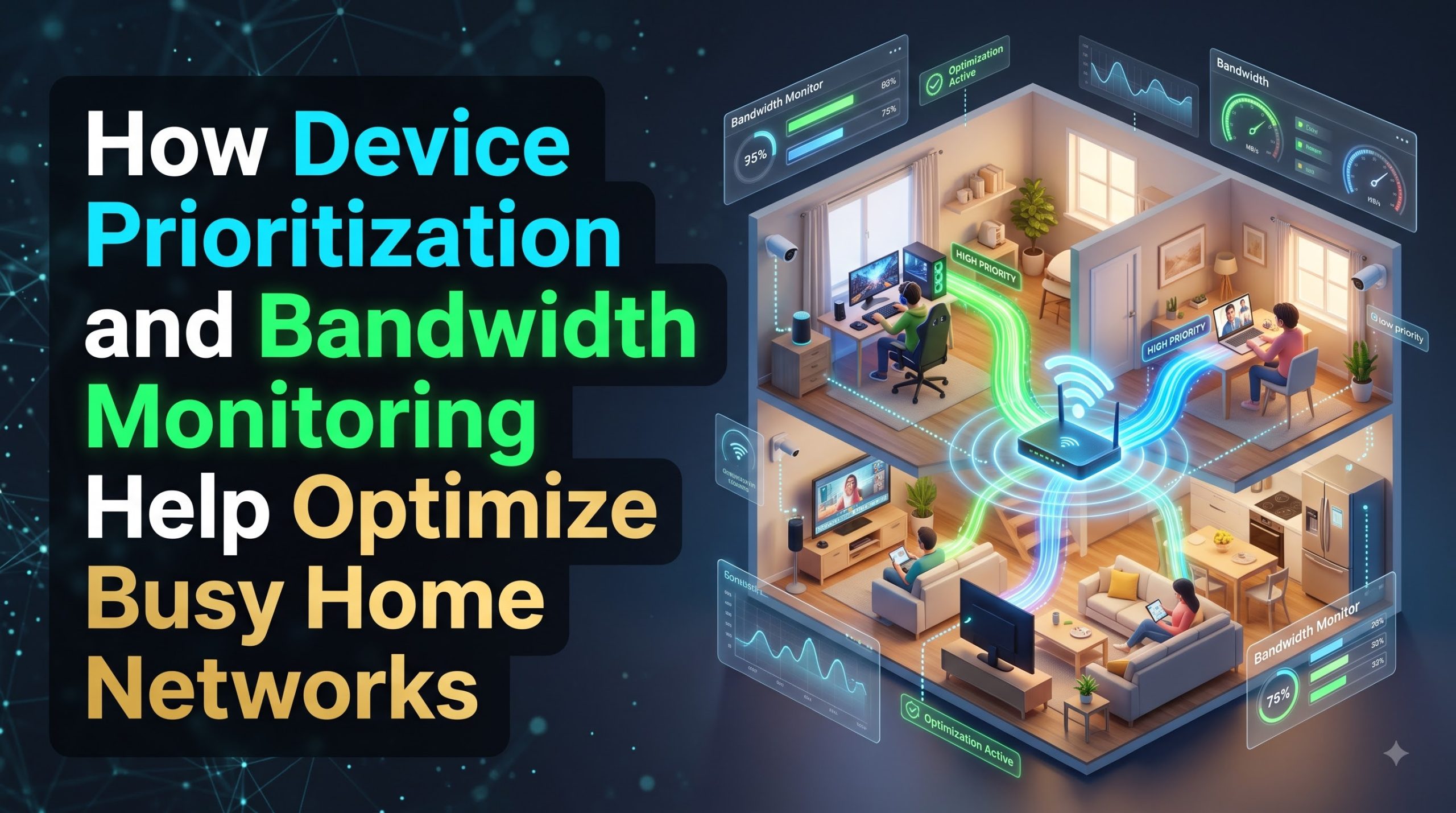

Modern homes rely on Wi-Fi for video streaming, online gaming, remote work, video conferencing, and smart home automation. When multiple devices compete for bandwidth, users may experience buffering, slow downloads, and unstable connections. Using the Nighthawk App to manage compatible router settings and completing a proper Nighthawk Extender Setup can help homeowners monitor their network, improve Wi-Fi coverage, and manage connected devices more effectively.
Understanding Device Prioritization in Home Networks
Device prioritization allows a router to give selected devices or types of traffic preferential treatment when network resources become limited. For example, a laptop used for an important video conference may need a more consistent connection than a television downloading a large update in the background.
Depending on the router model and its available quality-of-service (QoS) features, users may be able to prioritize specific devices, applications, or traffic categories. This helps the router manage competing demands when several activities happen at the same time.
However, prioritization does not increase the internet speed provided by an internet service provider. Instead, it helps manage available network capacity more efficiently during periods of congestion.
Homeowners can review their router’s supported traffic-management features and select the devices that matter most during busy hours. Giving priority to work computers, gaming consoles, or video conferencing equipment may help reduce interruptions when the network is heavily used.
How Bandwidth Monitoring Identifies Network Bottlenecks
Bandwidth monitoring helps users understand how much network capacity their connected devices consume. A single device may use relatively little data during ordinary browsing but consume significantly more bandwidth when downloading large files, streaming high-resolution video, or installing software updates.
Monitoring available network statistics can help identify these patterns. For example, if video calls become unstable every evening, users can check whether several devices are streaming videos or downloading large files at the same time.
Some routers display connected devices and traffic information through an administration dashboard or companion application. The amount of detail available varies by model, firmware, and application version.
With the Nighthawk App, users of compatible Netgear routers can access supported network-management features from a smartphone. Depending on the model, these features may include viewing connected devices, managing certain Wi-Fi settings, and checking network status.
Reviewing the available information regularly can help homeowners recognize recurring congestion and make more informed decisions about device usage, network settings, and internet-plan requirements.
Managing Multiple Devices During Peak Hours
Network congestion often occurs when several household members use bandwidth-intensive applications simultaneously. One person may participate in a video meeting while another streams a movie, plays an online game, and downloads large files in the background.
A practical solution is to identify the activities that require the most consistent connectivity. Work computers and video conferencing devices may benefit from prioritization during office hours, while gaming consoles may need attention during evening gaming sessions.
Users can also schedule large downloads and software updates for quieter periods. This reduces unnecessary competition for bandwidth when the household needs a responsive connection.
Where supported, router traffic-management settings can help distribute available capacity according to household priorities. The benefits depend on the router’s capabilities, the internet connection, and the nature of the congestion.
Improving Wi-Fi Coverage With Extender Placement
Bandwidth management is only one part of maintaining a reliable home network. Poor Wi-Fi coverage can cause slow performance even when the internet connection has sufficient capacity.
Homes with multiple floors, thick walls, distant bedrooms, or large living areas may have dead zones where devices receive weak wireless signals. A compatible Wi-Fi extender can help extend coverage into these areas.
Before completing a Nighthawk Extender Setup, users should identify where the existing Wi-Fi signal becomes weak. Placing an extender too far from the router can result in a poor connection between the two devices, limiting the performance available to connected clients.
A better approach is to position the extender within a usable signal range of the main router and away from major physical obstructions. After installation, test the connection in the rooms where improved coverage is needed.
An extender primarily addresses coverage limitations. It does not automatically increase the internet speed supplied by the provider, and wireless connections between the router and extender may reduce available throughput depending on the equipment and environment.
Combining Monitoring and Coverage Improvements
The best network-management strategy considers both bandwidth usage and wireless signal quality. If a laptop receives a strong Wi-Fi signal but struggles during large household downloads, congestion may be contributing to the problem. If the same laptop performs well near the router but poorly in a distant bedroom, coverage or interference may be the main concern.
Start by testing internet performance near the router and then repeat the test in different rooms. Compare the results at different times of day to determine whether the problem is location-dependent or associated with peak usage.
Next, review connected devices and any traffic information available in the router’s management interface. Prioritize important devices if the router supports the feature, and reduce unnecessary background downloads where practical.
If coverage remains inconsistent, review router placement and consider whether an extender or mesh system is suitable for the property. Making one adjustment at a time makes it easier to identify which change produces a meaningful improvement.
Maintaining Network Security and Performance
A busy home network also needs regular maintenance. Check for firmware updates, use a strong Wi-Fi password, and remove unfamiliar devices from the network after verifying that they are not legitimate household equipment.
Review guest network options if visitors frequently connect their phones or laptops. Keeping guest access separate from personal devices, where supported, can make network management easier.
Users should also avoid assuming that every slowdown is caused by Wi-Fi. Modem problems, service-provider outages, damaged cables, outdated client devices, and internet-plan limitations can produce similar symptoms. If performance remains poor across wired and wireless connections, further troubleshooting may be necessary.
Conclusion
Device prioritization and bandwidth monitoring help homeowners understand how network resources are being used and which activities may be competing for capacity. By reviewing connected devices, managing demanding downloads, and prioritizing essential tasks where supported, households can make better use of their existing internet connection.
Combining these practices with suitable router placement and a properly configured extender can also improve the experience in areas with weak Wi-Fi coverage. Using the Nighthawk App for compatible network-management tasks and completing an appropriate Nighthawk Extender Setup can support a more organized approach to home connectivity.
A reliable home network depends on the right combination of coverage, available bandwidth, device management, and regular maintenance. With a few targeted adjustments, users can reduce common connectivity frustrations and create a smoother online experience for everyone at home.