Physical Address
304 North Cardinal St.
Dorchester Center, MA 02124
Physical Address
304 North Cardinal St.
Dorchester Center, MA 02124

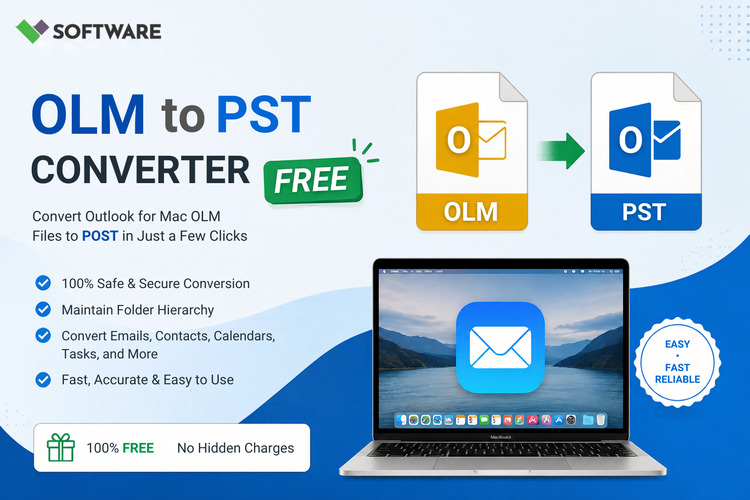
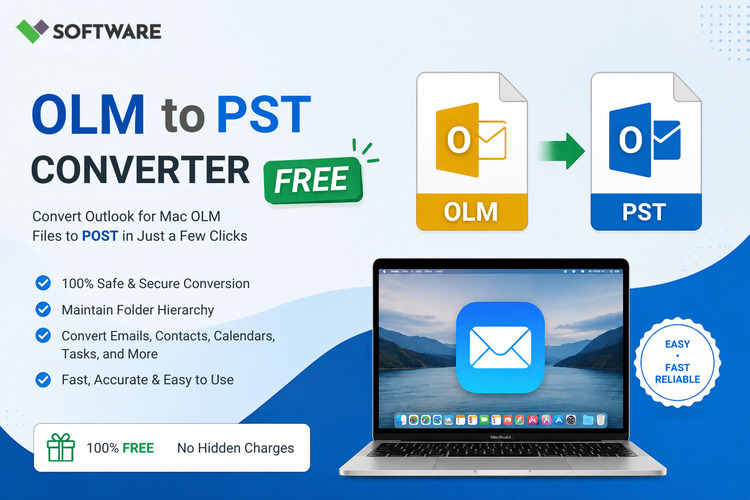
Learn how an **OLM to PST Converter Tool** works, its key features, and simple steps to convert OLM files to PST format for Outlook.
Microsoft Outlook is widely used for managing emails, contacts, calendars, tasks, and other mailbox data. However, Outlook stores information differently on macOS and Windows. Outlook for Mac generally exports mailbox data in an OLM file, while Outlook for Windows uses the PST format. Because these formats are not directly interchangeable, users moving from a Mac to a Windows computer may face difficulties accessing their old emails.
An OLM to PST Converter Tool helps solve this compatibility problem. It converts Outlook for Mac OLM files into PST files that can be imported into Outlook for Windows. This guide explains the conversion process, common migration challenges, important features, and the factors beginners should consider before selecting a conversion solution.
OLM is a mailbox archive format associated with Microsoft Outlook for Mac. Users can export their Outlook data into an OLM file for backup or migration purposes. Depending on the mailbox, an OLM file may contain:
Although an OLM file can store a large amount of valuable information, Outlook for Windows does not offer a direct option to import it. Therefore, users usually need to convert OLM to PST before accessing their Mac Outlook data on a Windows system.
PST stands for Personal Storage Table. It is a data file used by the classic desktop version of Microsoft Outlook for Windows to store mailbox information locally.
A PST file may include emails, contacts, calendar entries, tasks, notes, attachments, and folder structures. Once an OLM file has been converted into PST format, the resulting file can generally be imported into a compatible version of Outlook for Windows.
The most common reason for conversion is migration from Outlook for Mac to Outlook for Windows. However, several other situations may also require OLM conversion.
When an individual or organization replaces Mac computers with Windows systems, users must transfer their mailbox data into a format supported by Outlook for Windows.
Employees may receive OLM archives from former systems, departments, or colleagues. Converting these files allows the stored information to be accessed in a Windows-based workplace.
Organizations may want to maintain mailbox records in PST format because it is compatible with their existing Windows Outlook environment and archiving procedures.
A user may have an old OLM backup but no longer have access to a Mac. An OLM to PST Converter can make the archived mailbox accessible on a Windows computer.
Administrators may need to convert several OLM files collected from different users. A conversion tool with batch processing can make this task more manageable.
An OLM to PST Converter Tool is specialized software designed to read mailbox data from an OLM file and export it into PST format. A capable solution should preserve the original content and arrangement of mailbox items during conversion.
The basic workflow usually involves selecting the OLM file, scanning its contents, previewing recoverable mailbox items, choosing an output format, and saving the converted data. Some applications also provide filters, split options, folder selection, and alternative export formats.
Although the interface varies between applications, most tools follow a similar procedure.
If Outlook for Mac is still available, export the required mailbox data as an OLM archive. If an OLM backup already exists, locate it on the computer or external storage device.
Before beginning the conversion, create a separate backup copy of the original file. This ensures that the source data remains available if the process is interrupted.
Download and install a suitable conversion application from its official website. Confirm that the software supports your Windows edition, Outlook version, OLM file type, and expected mailbox size.
Launch the software and use its file-selection option to add the OLM file. Some tools allow users to browse for a known file, while others can search selected drives or folders for OLM files.
The software analyzes the source file and displays its mailbox folders. The scanning time may vary depending on the size and condition of the OLM file.
If a preview feature is available, examine emails, contacts, attachments, calendars, and folders before exporting them. This helps confirm that the required data has been detected correctly.
Choose PST from the available saving options. If required, select specific folders, apply date filters, or divide a large output file into smaller PST files.
Select a local folder with sufficient free space. Avoid saving the output on an unstable drive or in the same location as the only copy of the source file.
Begin the OLM to PST conversion and wait until the application completes the process. Do not shut down the computer or disconnect the storage device while the file is being processed.
Open Outlook for Windows and use its Import/Export feature to import the generated PST file. The exact menu path may differ according to the Outlook version being used.
Choosing the right software is important because email archives may contain confidential and business-critical information. Beginners should evaluate the following features before making a decision.
The software should transfer messages, attachments, contacts, calendars, notes, and tasks without unnecessarily modifying the original content.
A reliable tool should retain the original hierarchy of folders and subfolders. This allows users to navigate the converted mailbox more easily.
Important message properties such as sender, recipient, subject, date, time, CC, BCC, formatting, and attachment details should remain intact wherever technically possible.
A preview panel allows users to inspect mailbox content before saving it. It can also help them choose only the folders or items they need.
Not every user needs to convert the complete mailbox. Folder selection and date-range filters can reduce output size and processing time.
Large mailbox archives may require more memory and processing time. Check whether the software clearly supports large files and offers options for managing large PST output.
Businesses and IT administrators may need to process multiple OLM files. Batch conversion can reduce repetitive work by handling several files in one operation.
Some advanced applications provide options to avoid exporting duplicate items. This can be useful when data from overlapping archives is being consolidated.
In addition to PST, some tools may export mailbox data to formats such as EML, MSG, PDF, HTML, or MBOX. This feature can be valuable when data must be used outside Outlook.
Many conversion applications offer a free demo. A demo version can be useful for evaluating the interface, scanning ability, preview quality, and compatibility with a specific OLM file.
However, free versions often restrict the number of items that can be exported. A licensed edition may be required for complete mailbox conversion, large files, batch processing, advanced filters, or technical support.
Before purchasing an OLM to PST Converter, review the demo limitations, license duration, supported systems, activation policy, refund terms, and support options.
Always keep an untouched backup of the original OLM file. Check that the destination drive has enough free space and close unnecessary applications before processing a large mailbox.
Download software only from an official or reputable source. Avoid uploading confidential mailboxes to unknown online services, especially when the files contain personal, legal, financial, or business information.
After conversion, compare the source and output mailbox structures. Open sample emails, attachments, contacts, and calendar entries to verify that the important data is accessible. Keep the conversion report or log if the software generates one.
Users may encounter problems such as missing folders, incomplete attachments, slow scanning, insufficient storage space, Outlook import errors, or oversized output files. These issues can result from a damaged source file, limited computer resources, incompatible software, or incorrect export settings.
If a conversion fails, avoid repeatedly modifying the original file. Work with a backup copy, confirm software compatibility, check available disk space, and contact the software provider if necessary.
Moving Outlook data between macOS and Windows can be challenging because OLM and PST files serve different platforms. A suitable OLM to PST Converter Tool simplifies this migration by converting emails and other mailbox items into a format supported by Outlook for Windows.
Beginners should not select software solely on the basis of price. Conversion accuracy, folder preservation, file-size support, preview options, security, compatibility, and technical assistance are equally important. By testing a demo, protecting the original file, and verifying the converted data, users can complete an OLM to PST migration with greater confidence and minimal disruption.